

Remember when you had to borrow someone else's phone to record your iPhone screen? Those days are gone! Apple has built this super-cool feature right into your iPhone. Let's unlock this hidden superpower together!
Quick Guide: Screen Record on iPhone in 30 Seconds
- Open Settings
- Tap Control Center
- Add Screen Recording
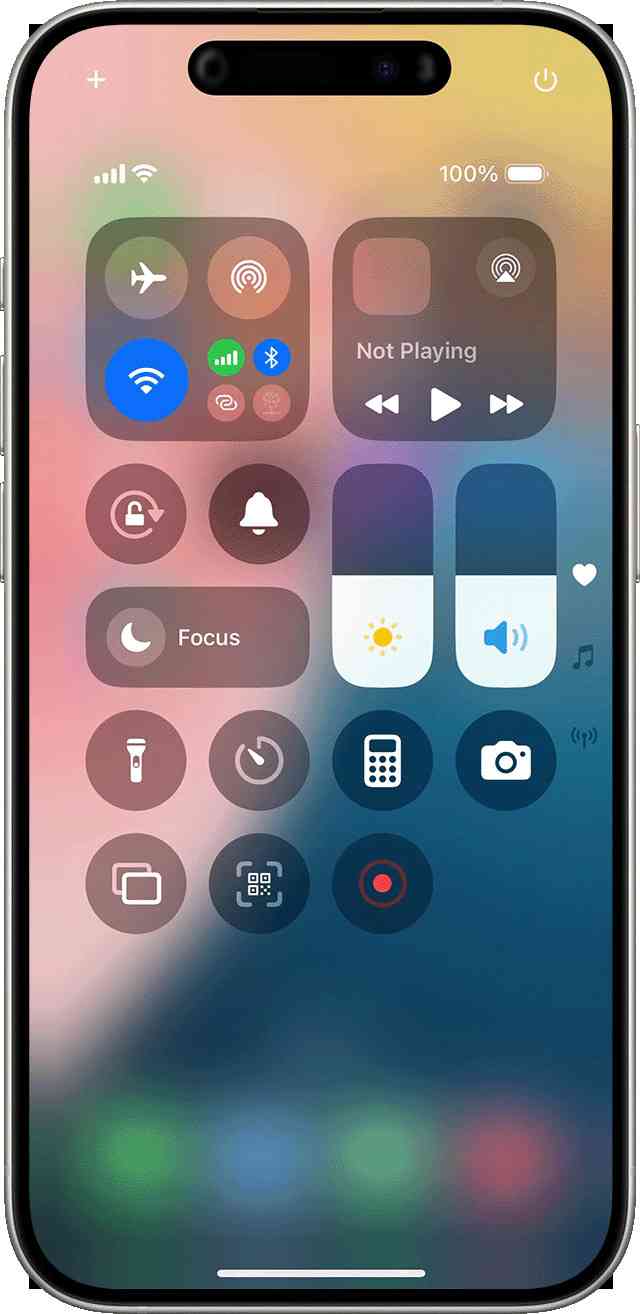
- Swipe down (or up) for Control Center
- Tap Record button
- Wait 3 seconds
- Start recording!
Detailed Steps: How to Screen Record on iPhone
Step 1: Set Up Screen Recording
Before you can become a screen recording superhero, you need to add the power to your Control Center:
- Open your iPhone's Settings app
- Scroll down and tap "Control Center"
- Under "MORE CONTROLS," find "Screen Recording"
- Tap the green plus (+) button next to it
- The feature will move to "INCLUDED CONTROLS"
Step 2: Start Recording Your Screen
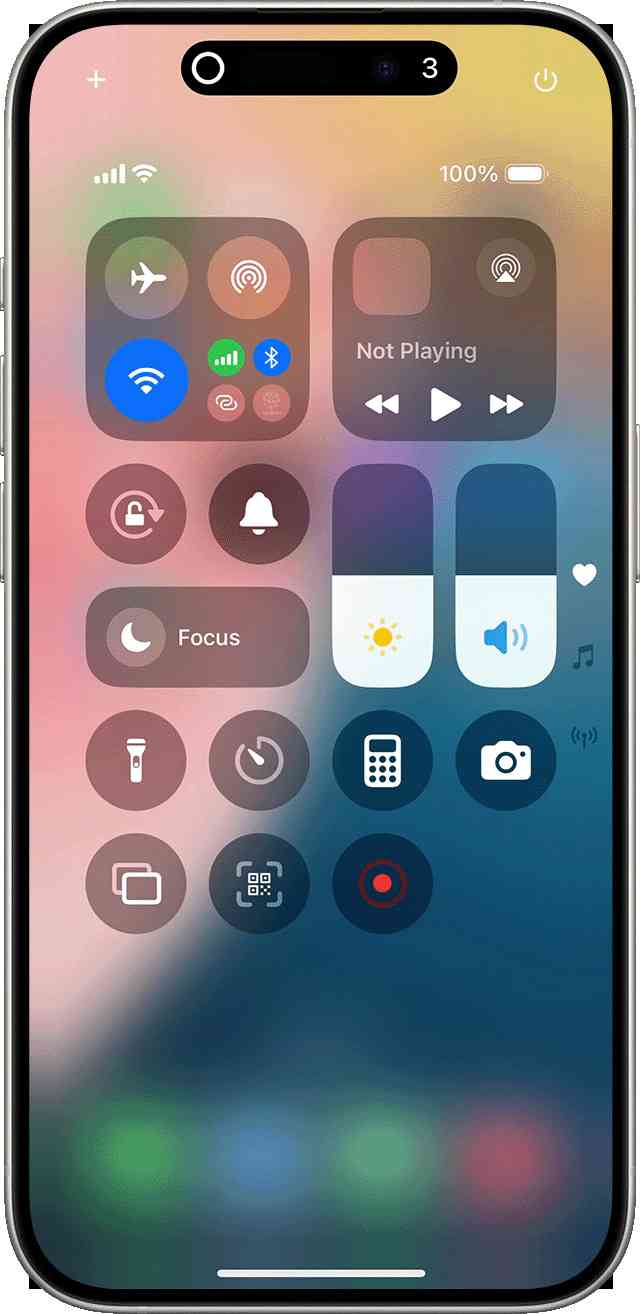
Now comes the fun part! Here's how to record your screen:
- Swipe down from the top-right corner (or up from the bottom on older iPhones)
- Find the Screen Recording button (it looks like a circle inside another circle)
- Tap it once
- Wait for the 3-second countdown
- You're now recording everything on your screen!
Pro Tip: Want to record with sound? Press and hold the Screen Recording button, then tap the microphone icon to turn it on.
Step 3: Stop Recording
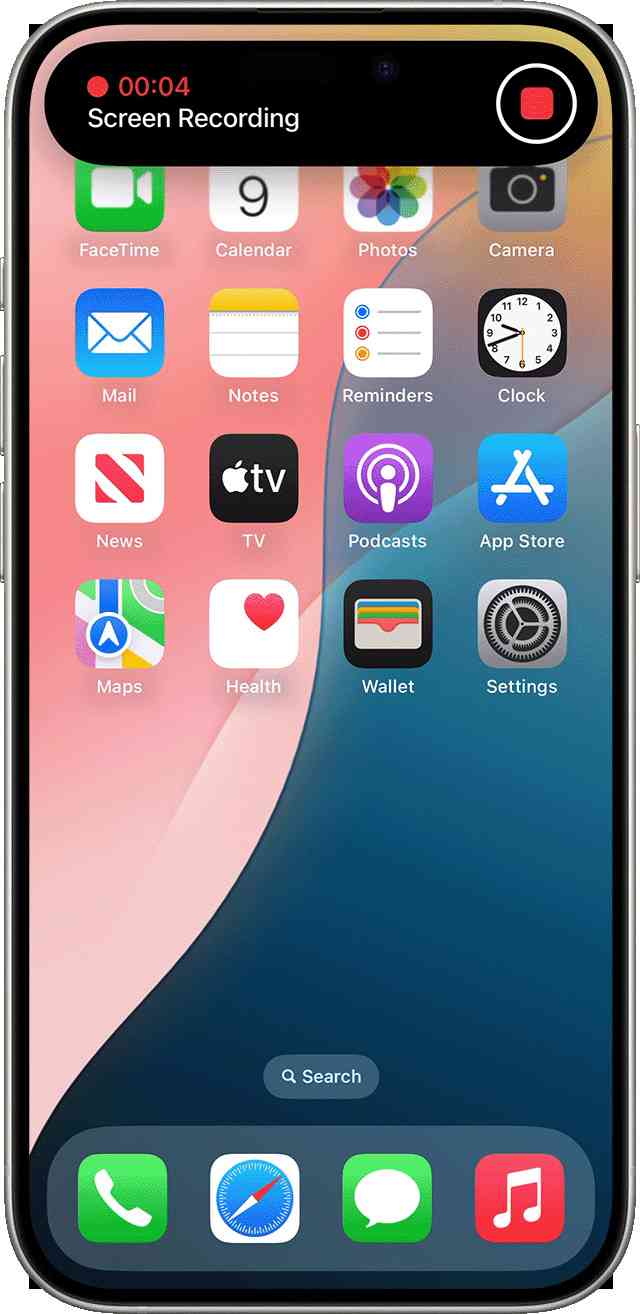
Finished capturing your content? Here's how to stop:
- Tap the red clock in the top-left corner
- Tap "Stop"
- Your video will automatically save to Photos
Cool Things You Can Record
- Your amazing gaming victories 🎮
- App tutorials for grandma 👵
- Bug reports for tech support
- Social media stories
- Video calls with family and friends ❤️
- Online course content 👀
Troubleshooting Common Problems
Screen Recording Not Working?
Try these fixes:
- Restart your iPhone
- Check storage space
- Update iOS
- Reset Control Center settings
No Sound in Your Recording?
Remember to:
- Long-press the record button
- Turn on the microphone
- Check app permissions
Pro Tips for Perfect Screen Recordings
- Clean Up First: Close unnecessary apps and clear notifications
- Check Storage: Make sure you have enough space
- Do Not Disturb: Turn it on to avoid notification pop-ups
- Battery Life: Keep your iPhone charged above 20%
- Practice Run: Try a test recording first
When You Can't Record
Some apps and content have recording restrictions for copyright reasons:
- Netflix
- Disney+
- Apple TV+
- Some banking apps
Storage and Management
Your screen recordings are saved as videos in your Photos app. To manage them:
- 1. Open Photos
- 2. Tap Albums
- 3. Scroll to "Screen Recordings"
- 4. Select and delete unwanted recordings
Legal and Privacy Tips For Screen Recording
- Always ask for permission before recording calls
- Don't record copyrighted content
- Be careful with sensitive information
- Check local recording laws
Why Screen Recording is Awesome
- Create how-to guides
- Save important information
- Share app problems with support
- Keep memories from apps
- Make social media content
The Future of Screen Recording
Apple keeps making this feature better with each iOS update. Recent improvements include:
- Better quality recordings
- Smaller file sizes
- More sharing options
- Enhanced privacy features
Frequently Asked Questions
Q: How long can I screen record?
A: As long as you have storage space! But remember, longer recordings make bigger files.
Q: Does screen recording drain battery?
A: Yes, it uses more battery than normal. Keep your iPhone charged or connected to power.
Q: Can I edit my screen recordings?
A: Yes! Use the built-in editing tools in Photos or iMovie for more options.
References and Further Reading
- Official Apple Support: How to record the screen on your iPhone
- Apple Developer Documentation: ReplayKit Framework
- iOS Security Guide - Screen Recording Privacy
- U.S. Copyright Office - Digital Millennium Copyright Act
- Electronic Frontier Foundation - Digital Privacy Rights
Sources:
- Apple Support Documentation
- iOS 17 User Guide
- Apple Developer Guidelines
- Digital Privacy Research Institute
- Electronic Communications Privacy Act Guidelines
Remember, screen recording on iPhone is like having a tiny TV studio in your pocket. Use it wisely, and you'll never miss capturing those important (or funny) moments again!







Be the first to show love! 🚀
Start something amazing - your support inspires creators!